Choose a service.
An Arabic and English visitor interface presents the configured services on the touchscreen.

A clear starting point for every visitor. Touchscreen service selection, printed tickets and a Windows controller in one freestanding kiosk.
17-inch touchscreen · 24-inch alternative available
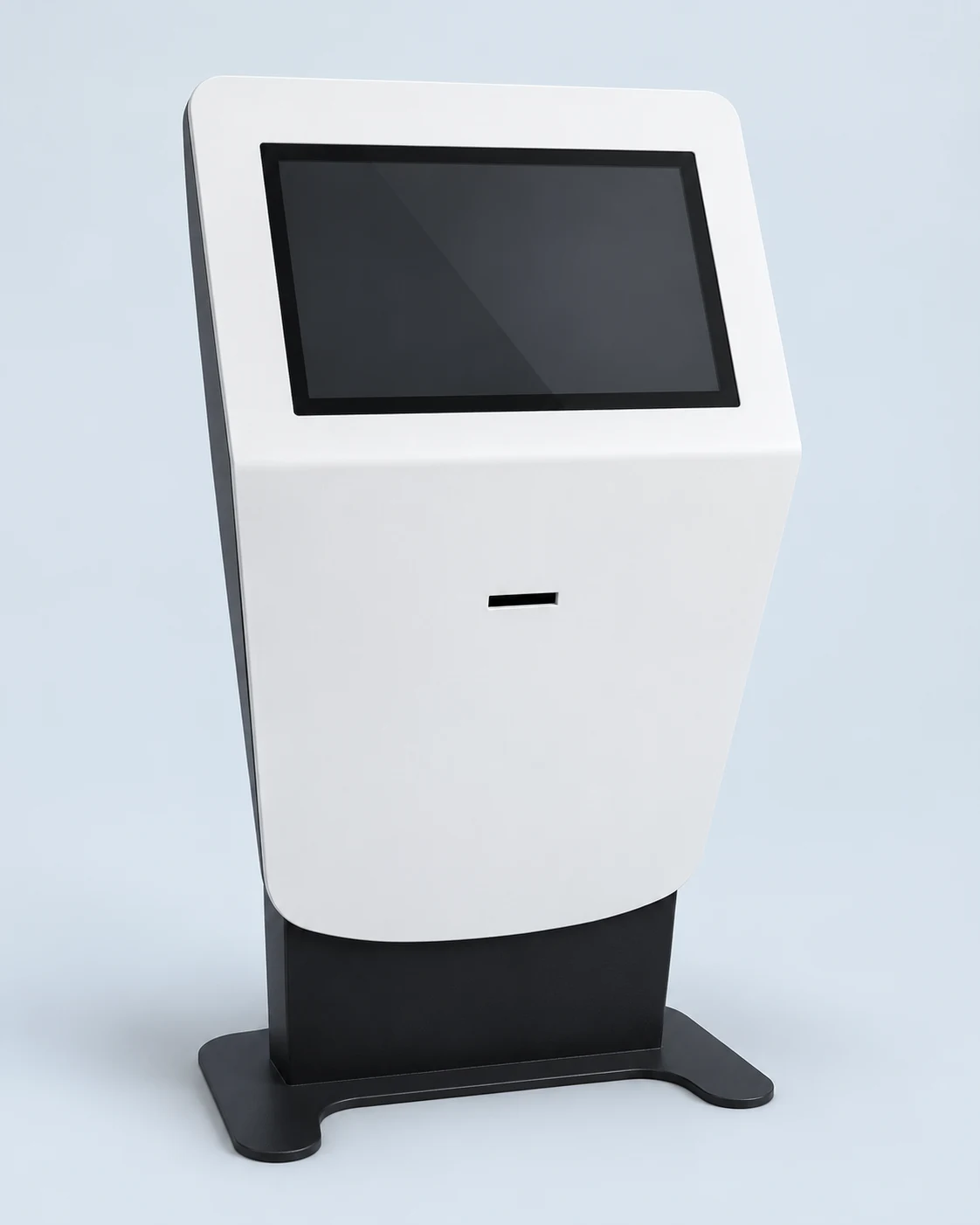
Pair the kiosk with Smart Queue to guide visitors through service selection and give them a printed ticket to follow through the waiting area.
An Arabic and English visitor interface presents the configured services on the touchscreen.
The integrated 80 mm thermal printer produces a numbered receipt, with an auto-cutter and ticket reprint support.
Smart Queue connects ticketing with staff counters and waiting-area displays. Kiosk-connected audio can be configured for announcements.
A white visitor-facing panel, an angled touchscreen and a black freestanding enclosure. Rear access panels keep the working components behind the scenes.
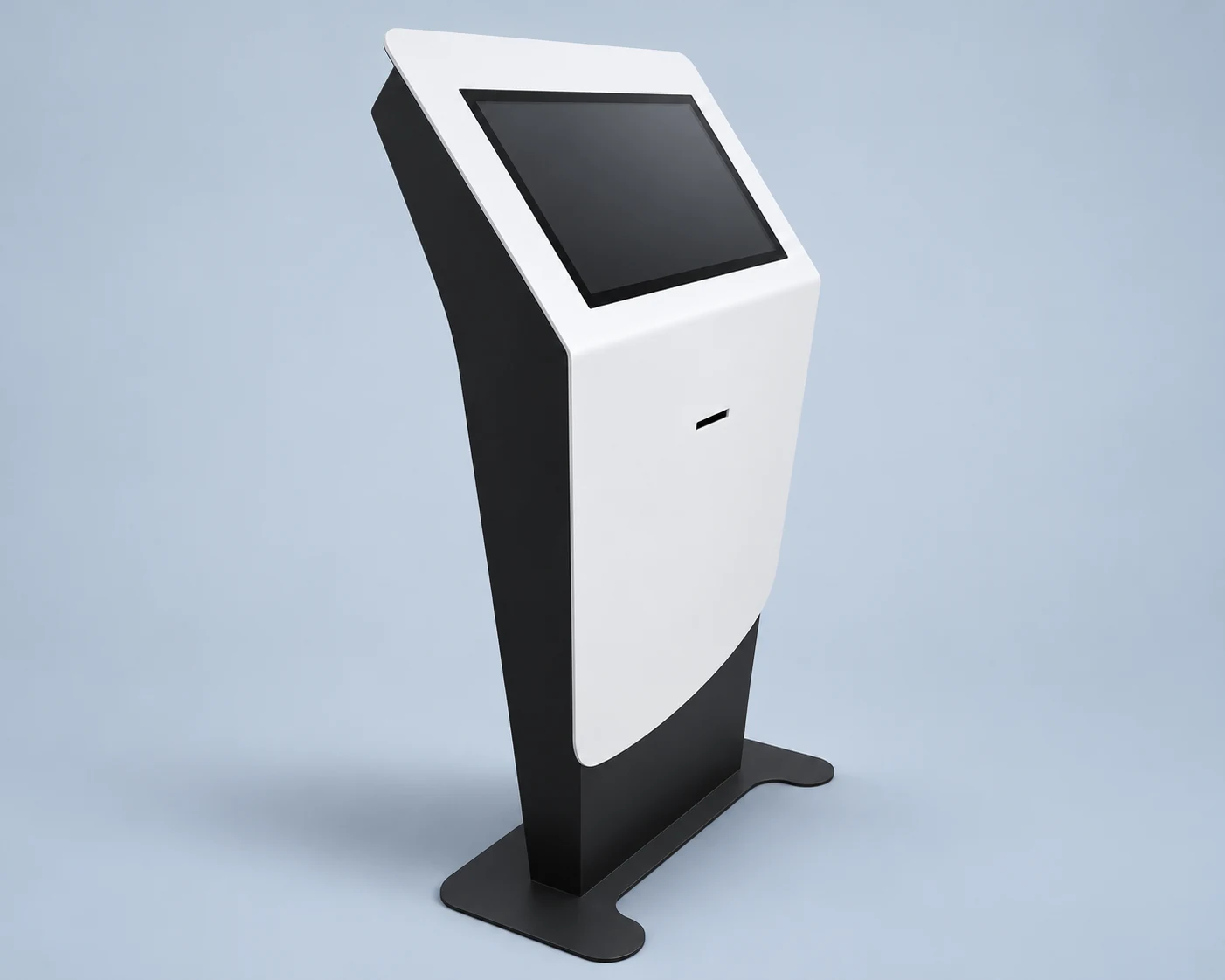
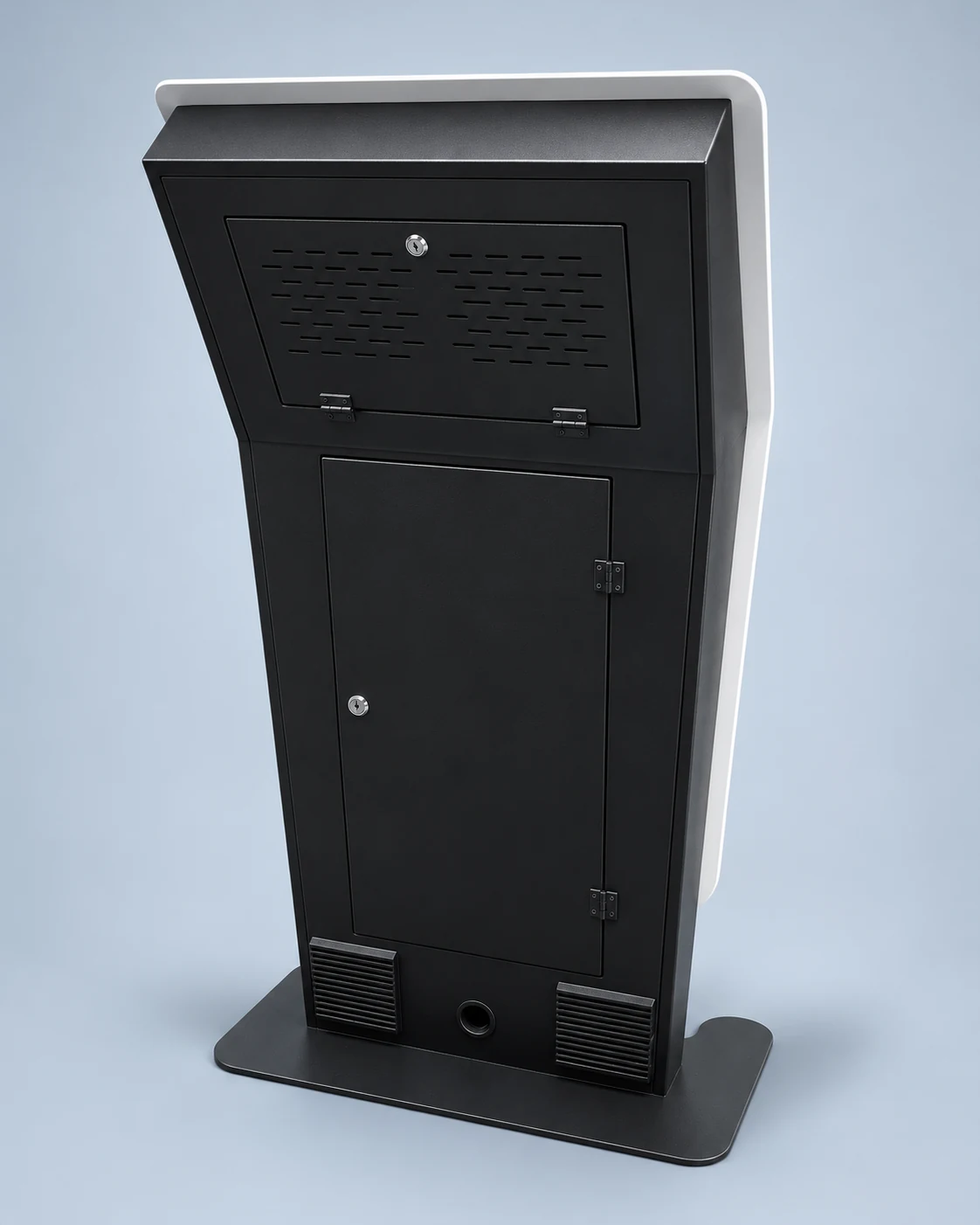
The listed configuration combines a NanoPowerX Mini N150 controller, touchscreen and integrated thermal printer.
Choose the 17-inch touchscreen or specify the 24-inch alternative. One screen is supplied per kiosk; the larger option replaces the standard screen.
Confirm your configuration →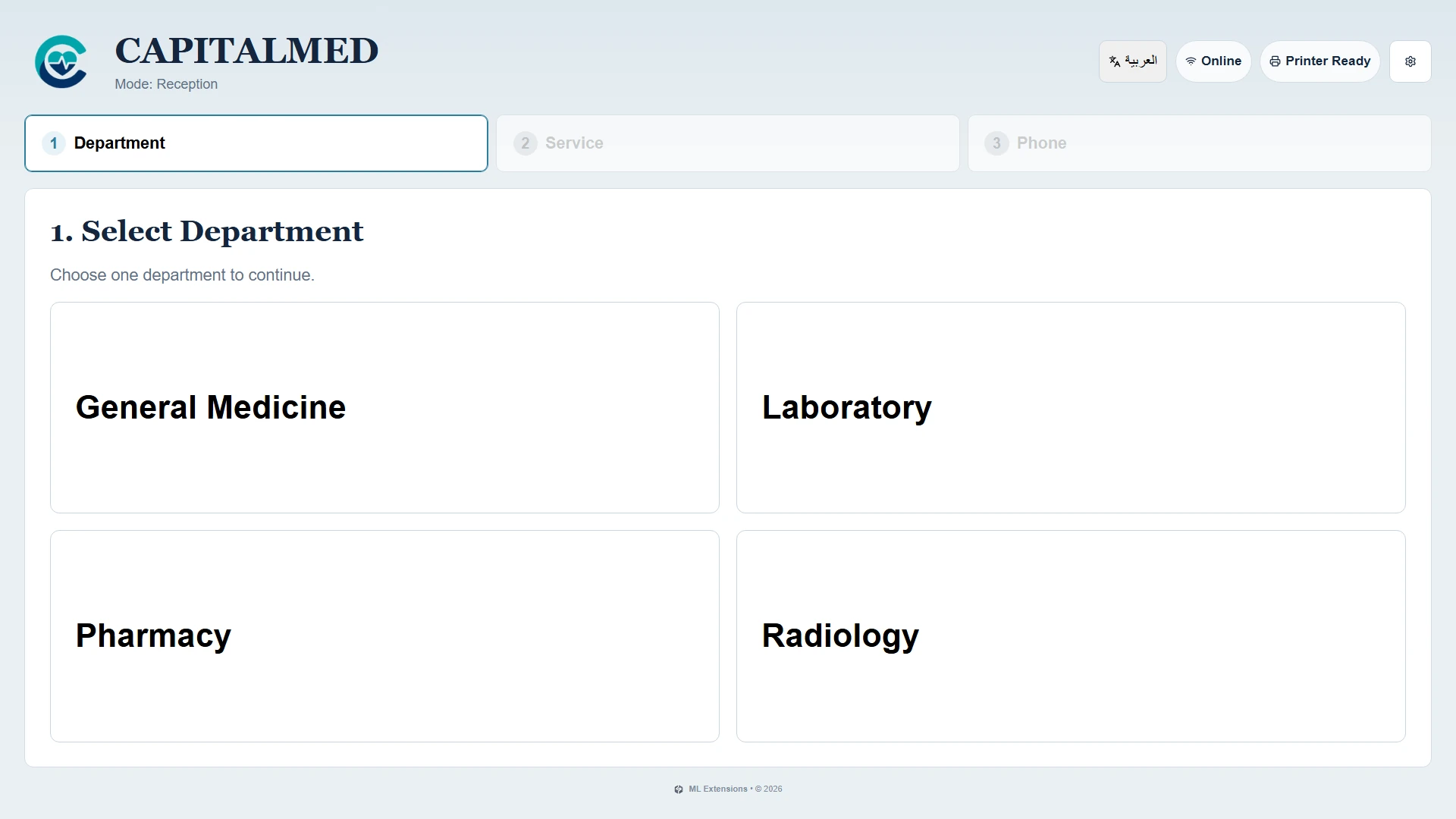
Connect the kiosk to Smart Queue for bilingual ticketing, receipt printing, reprints and device diagnostics. Staff applications, queue displays and administration complete the wider system.
The standard ticket flow asks for an Egyptian mobile number. Phone-free or student-ID workflows require a separately agreed adaptation.
Explore Smart Queue software →The core Smart Queue deployment runs over the local network without a public cloud dependency. The local server and LAN must remain available: new tickets cannot be issued if the backend is unreachable. Independent offline ticketing is not included.
A separate audio-player session can run on the kiosk controller and connect to a matched amplifier and speaker through its audio output. Confirm the audio package and waiting-area coverage with your distributor. Staff activate audio at the start of a browser session and keep the session running.
A local backend server, the site network, staff PCs and suitable queue-display equipment form the wider system. These are separate from the kiosk hardware configuration. Software scope, endpoint quantities and installation services are confirmed for your project.
Discuss your entrance layout, visitor workflow and waiting areas with a distributor. Confirm the 17-inch or 24-inch screen, software, audio and site readiness before ordering. Delivery, pricing, support and warranty follow the commercial quotation.