
 Smart QueueQUEUE MANAGEMENT, CONNECTED.
A clearer
way to wait.
Give every visitor a clear next step.
Give your team control of the queue.
Clear displays. Useful insight.
One ticket.
Everyone on the same page.
From the entrance kiosk to the service counter, Smart Queue keeps visitors, staff and managers working from the same queue.
The next step
should be obvious.
Choose a service. Take a ticket. Follow the call. Behind that simple experience, staff manage priorities, transfers and service completion while managers see the bigger picture.
Meet the applicationsFollow FAM-001.
From the door to the data.
Scroll to follow one visitor’s ticket through every Smart Queue application, from the first tap to the report.
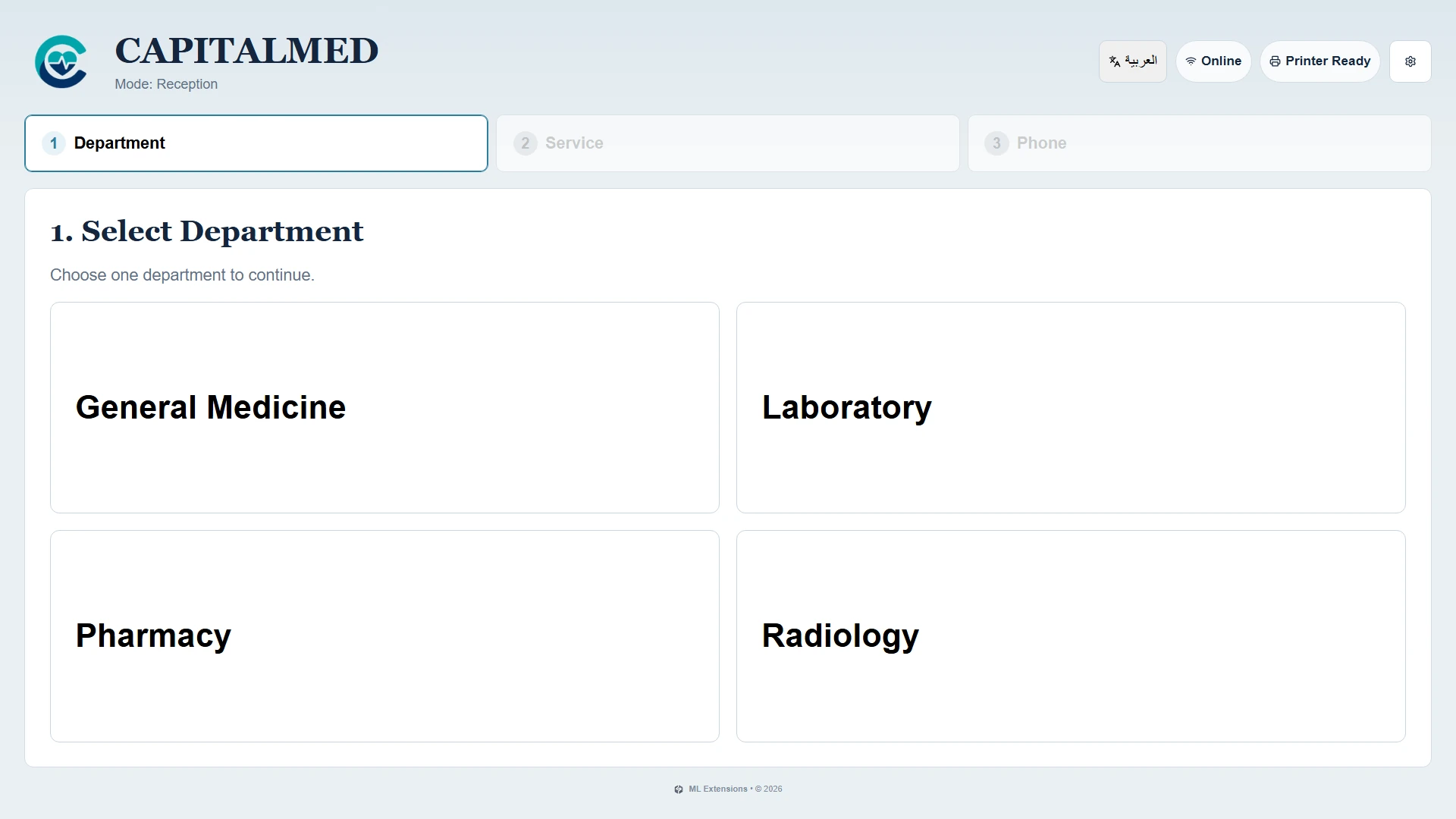 Tap: General Medicine
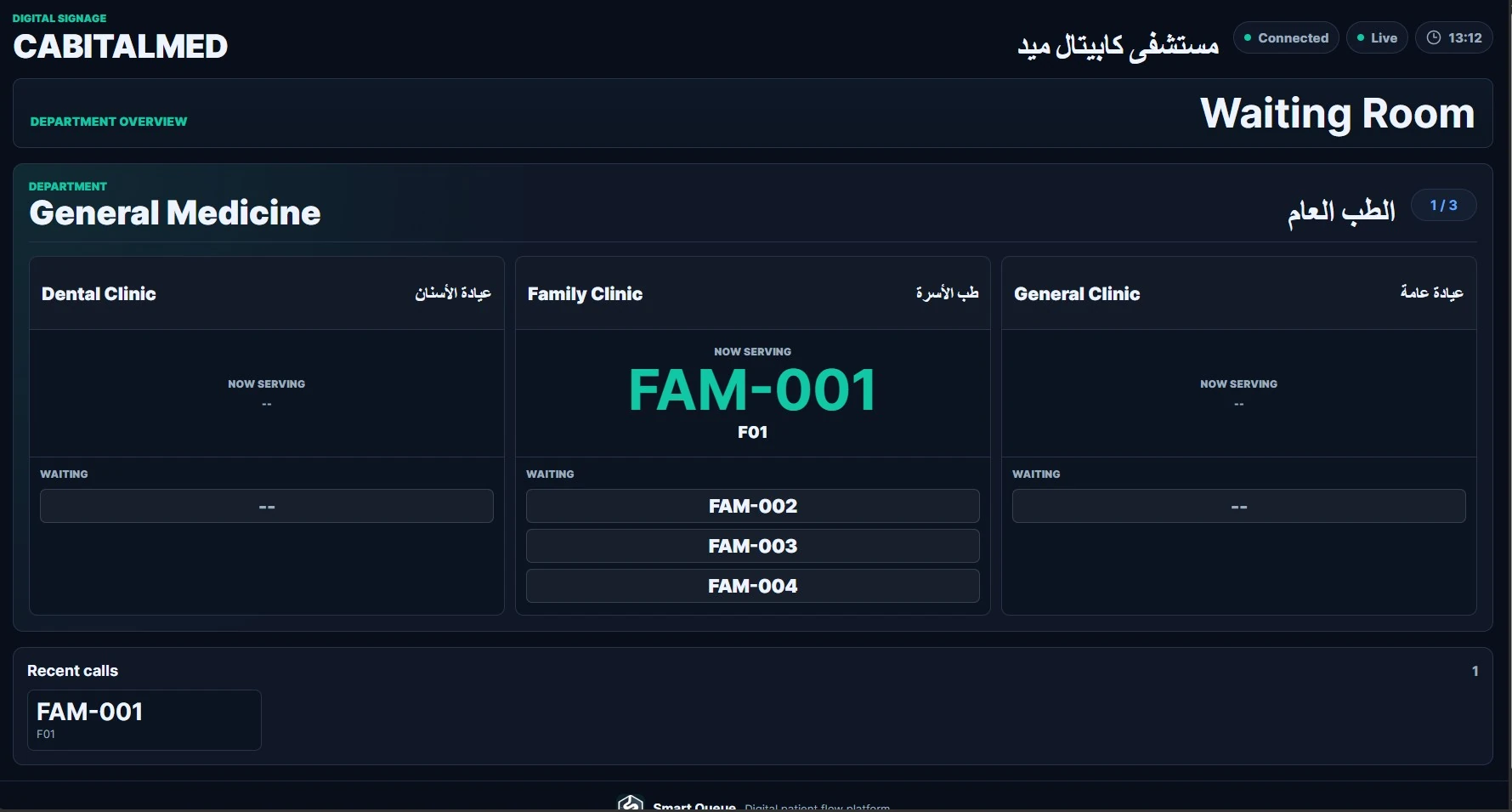 Family Clinic queue
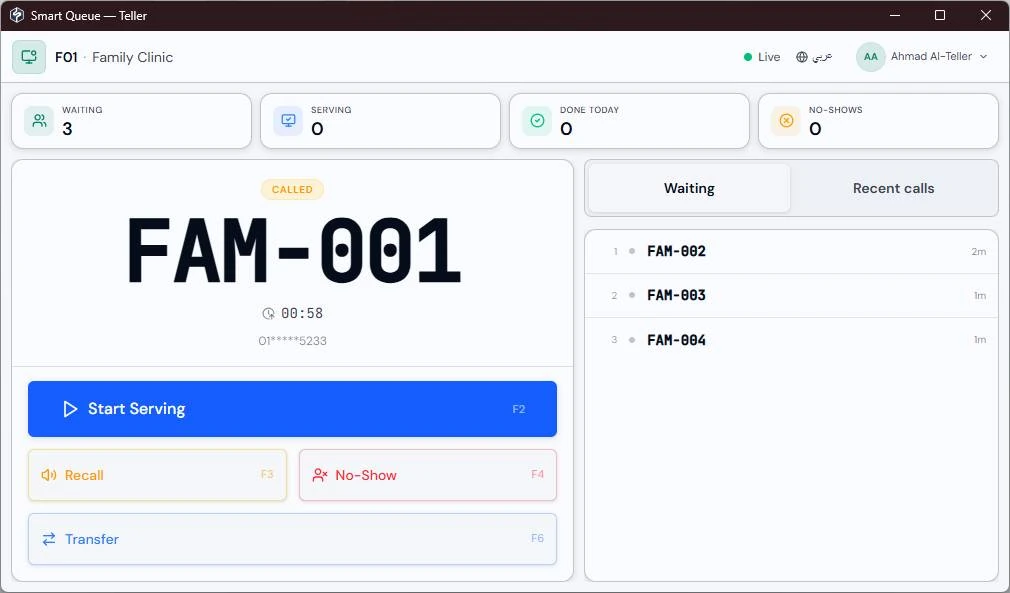 Counter F01 · Start Serving
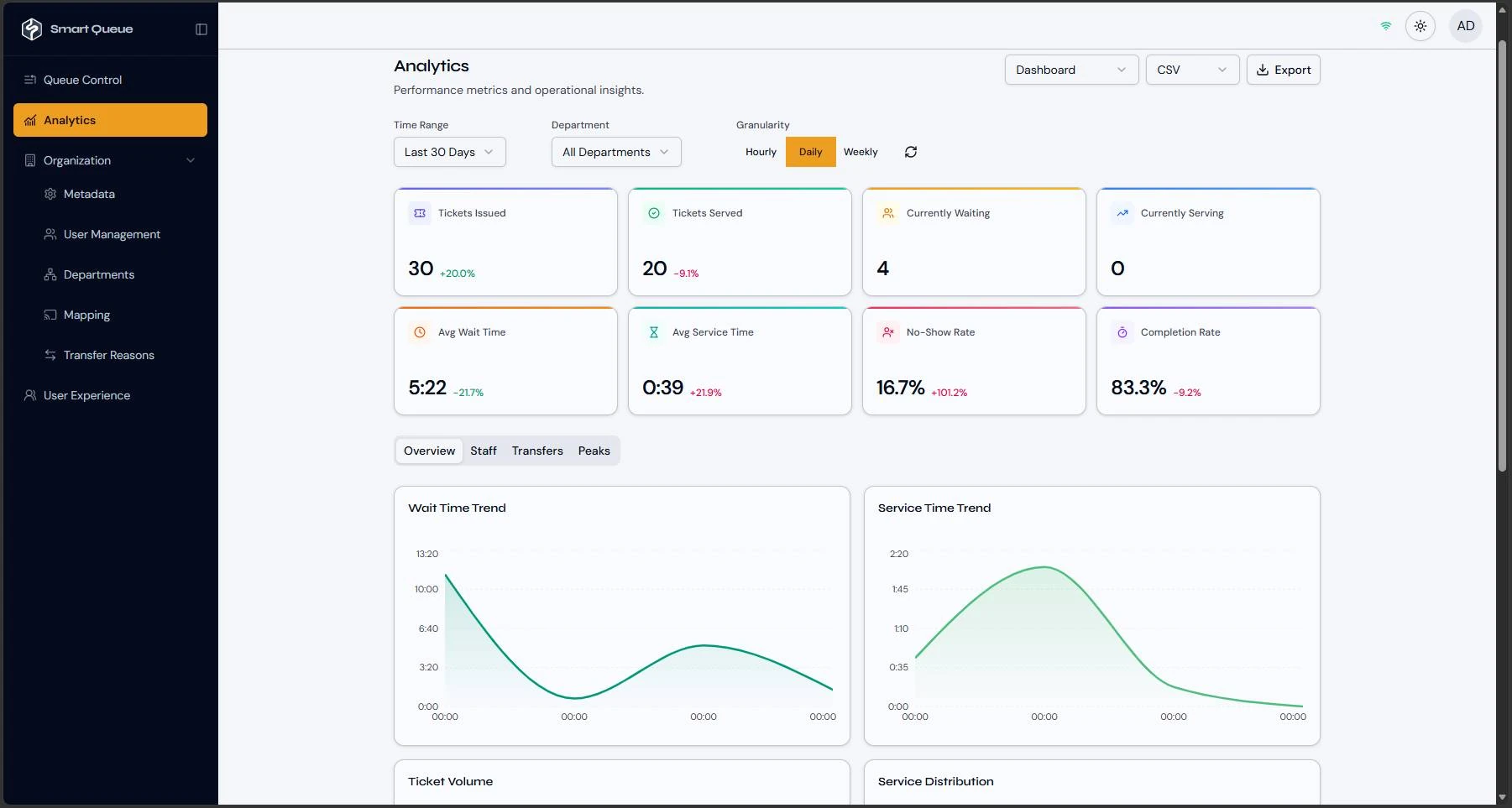 Avg wait time
Actual application screenshots with demonstration data. The printed ticket and LED panel are illustrative.
- 01 · CHOOSE
A clear place to start.
The visitor taps a department on the self-service kiosk, in Arabic or English, then picks a service. No account, no queue at reception.
- 02 · PRINT
One ticket. One number.
FAM-001 prints with the department, service and people ahead. From here, every screen in the building knows it.
- 03 · WAIT
Waiting, without guessing.
Waiting-room displays show who is being served and who is next for each clinic, so visitors can sit down and relax.
- 04 · CALL
Called to counter F01.
The LED panel above counter F01 lights up and the announcement plays in Arabic and English.
- 05 · SERVE
The counter keeps it moving.
Staff start service, recall, mark a no-show or transfer the visitor, each action reaching every screen instantly.
- 06 · MEASURE
Every ticket becomes insight.
The wait from ticket to call and the service time are recorded, so managers can see where the day slows down.
Every role.
A focused workspace.
Explore the actual interfaces that connect your front desk, waiting area and operations team.
Touch-friendly service selection, Arabic and English interfaces, and printed tickets for the next step. Runs on the Smart Queue Ticket Kiosk.
Call next, recall, start service, complete, mark a no-show or transfer a visitor within the staff member’s permissions.
Show called tickets and destinations on assigned screens. Add ordered Arabic or English announcements through a dedicated audio player.
Monitor department queues, review ticket activity and manage eligible waiting tickets with role-based access.
Actual application screenshots. Names, tickets and figures shown belong to demonstration configurations.
From appointment
to the right room.
Connect patient flow to your hospital management system, with a clear boundary between queue operations and clinical care.
The pilot check-in needs no patient account, phone or camera.
- 01
Bring bookings into the queue.
Import dated appointments, service sessions and eligibility from the HMS. Keep tomorrow’s bookings separate from today’s waiting list.
- 02
Confirm arrival, simply.
Enter the eight-digit code issued by reception, choose the eligible service and confirm attendance at the kiosk.
- 03
Call the right patient.
Use appointment-aware selection with configurable arrival rules and reserved walk-in capacity. Displays direct patients by ticket and room.
- 04
Keep clinical events in the HMS.
The HMS confirms actual care start and finish. Queued integration events retry after interruptions, keeping the systems in sync.
See the integration story.
Explore booking, arrival, calling, clinical updates and operational reporting in the existing HMS pilot film.
Demonstrated with a simulated HMS. Live connectivity, clinical workflows and final acceptance are agreed with the hospital and its HMS provider. The film illustrates the intended calling workflow, which remains subject to integration validation.
See where the
day slows down.
Use queue activity to understand waiting times, service pressure and the points where visitors need a smoother handover.
Understand demand.
Review ticket volumes, wait and service times, and peak periods by department.
Follow the outcome.
Explore completions, no-shows, staff activity and the reasons behind transfers.
Take the detail with you.
Filter the reporting period and export supported reports to PDF, Excel or CSV.
Application screenshot with demonstration figures. Waiting time measures ticket creation to call; service time measures service start to completion.
Different settings.
A considered approach.
A selection of integration work and technical proposals prepared for healthcare, education and customer service.
01HEALTHCARECapitalMedA connected appointment-to-care journey.Integration pilot
A working simulated HMS integration connecting the real kiosk, teller, administration and player applications. The pilot covers reception, receipt-code attendance, appointment-aware calling, clinical callbacks and recovery of pending events.
Scope: reception and a cardiology session. Live vendor integration and physical acceptance remain pending.
Explore the hospital workflow02EDUCATIONICB, BanhaCampus services with five teller positions.Technical proposal
Prepared for International College of Banha: a local NanoPowerX server, a 17-inch ticket kiosk with thermal printer, five teller applications, a queue display and kiosk-connected audio announcements.
The proposed design reuses the college’s teller PCs and signage equipment. Installation and acceptance are not represented as completed.
03CUSTOMER SERVICELogistics officeTicketing, counters and coordinated calls.Technical proposal
A single-site design with a ticket kiosk and printer, five service counters, five counter displays and one announcement zone. A local server coordinates ticketing, staff actions, reporting and device assignments.
Prepared through ACS. Final counter layout, equipment and on-site acceptance follow the agreed project scope.
04HEALTHCAREClinic complexA focused start for shared waiting areas.Technical proposal
A phased proposal connecting patient check-in, reception, waiting-area displays and administration. The starting scope centres on the entrance and waiting zone, with additional services and reporting considered after the first operational review.
Illustrative configuration. Final quantities and deployment scope depend on the site survey.
Your network.
Your daily operation.
Run the core queue on a local server, with kiosks, staff workstations and displays connected over your site network. Match the equipment and scope to the way your team works.
Explore the Smart Queue Ticket KioskExplore NanoPowerX Mini PCs
Does the core queue need internet?
Core local ticketing and calling do not require public internet. The local server and LAN must remain available; new ticket issuance stops if the backend cannot be reached.
Can we use our existing equipment?
Compatible PCs and browser-based display devices can be included after a readiness check. Screen placement, printers, audio and network access are confirmed during the site survey.
What about mobile access and WhatsApp?
Mobile queue access and messaging are optional, separately scoped connections. They depend on gateway configuration, internet access and provider/account setup; provider messaging charges may apply.
How does a project begin?
Map the services, counters and waiting zones. Confirm the hardware and network, agree the workflow, then configure and test a focused pilot before expanding.
Sketch your setup
in a minute.
Tell us about your site. We’ll suggest a starting setup with nanopower X hardware that you can take to your distributor.
Make the next
step a clear one.
Tell us about your services, counters and waiting areas.
We’ll help shape the right starting point.